


How to Set Up IPTV on Android TV in 5 Minutes (Step-by-Step Guide)
Introduction
IPTV (Internet Protocol Television) has completely changed how people watch TV. Instead of relying on traditional cable or satellite, IPTV allows you to stream live TV channels and on-demand content directly through the internet.
If you own an Android TV, setting up IPTV is quick and simple. In this guide, we’ll show you how to set up IPTV on Android TV in just 5 minutes, even if you're a complete beginner.
Whether you're using UKPRIMEMEDIA or another IPTV service, this guide will help you get started instantly.
What You Need Before Setup
Before starting, make sure you have the following:
- ✅ Android TV or Android TV Box
- ✅ Stable internet connection (minimum 15 Mbps recommended)
- ✅ IPTV subscription (e.g., UKPRIMEMEDIA)
- ✅ IPTV login details (Username, Password, or M3U URL)
- ✅ IPTV player app
Step 1: Install an IPTV Player on Android TV
To stream IPTV, you need a compatible IPTV player.
Recommended IPTV Apps:
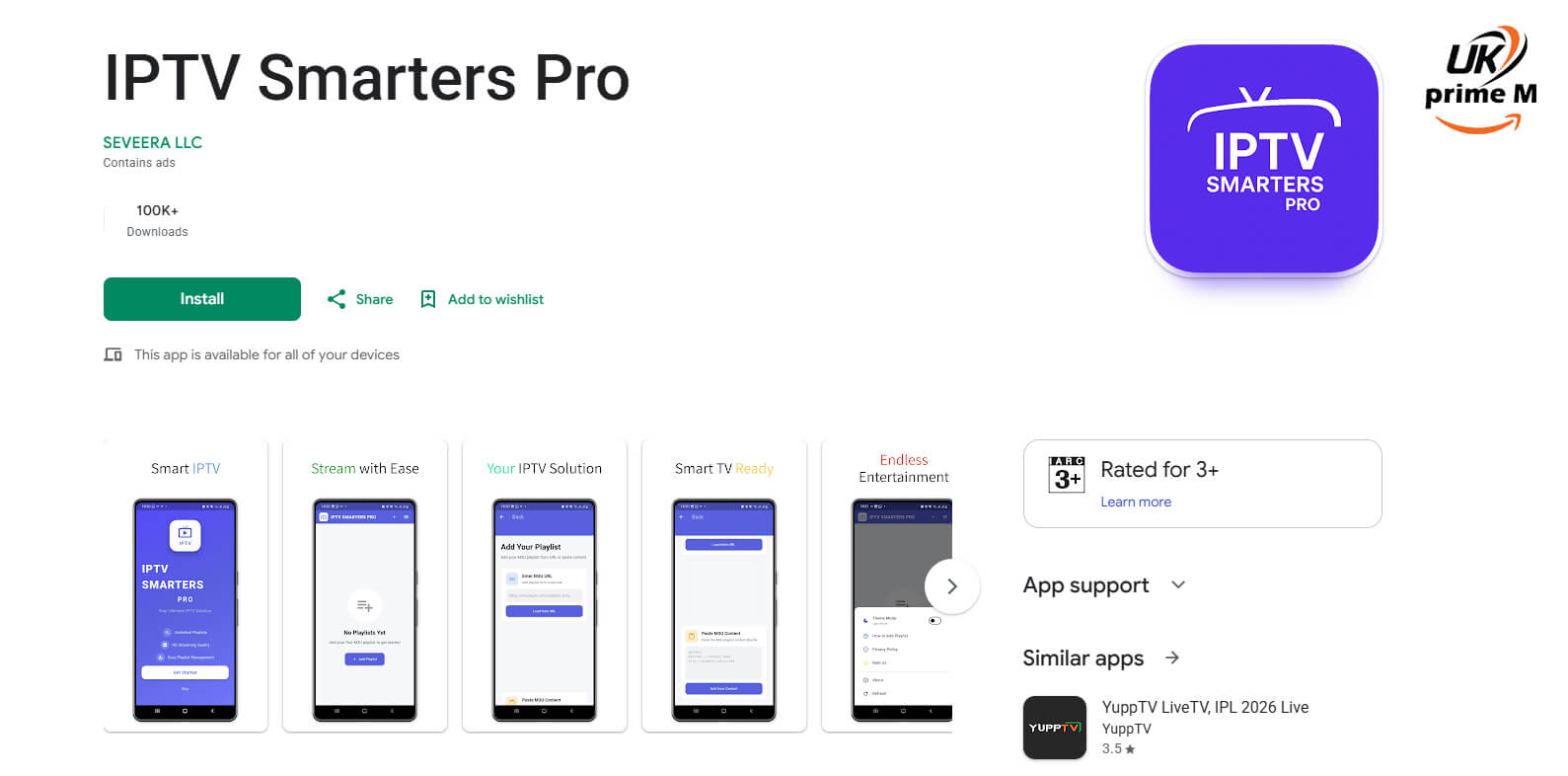
- IPTV Smarters Pro
- TiviMate
- XCIPTV Player
How to Install:
- Open Google Play Store on your Android TV
- Search for your preferred IPTV app
- Click Install
- Wait for installation to complete
Step 2: Open the App and Enter IPTV Details
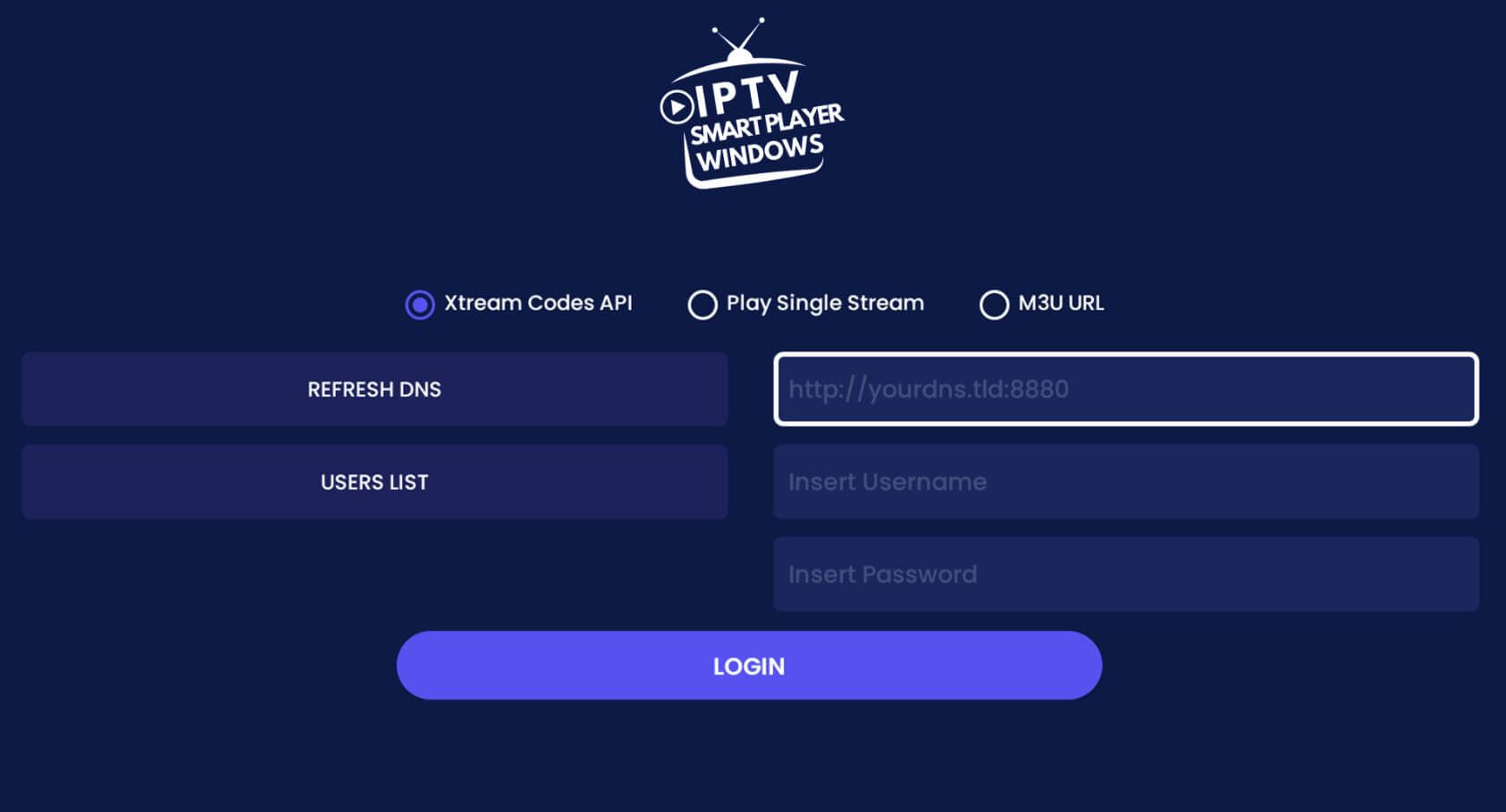
After installing the app, open it and log in using your IPTV credentials.
Login Methods:
✔ Option 1: Xtream Codes API (Recommended)
- Username
- Password
- Server URL
✔ Option 2: M3U Playlist URL
Enter your M3U link provided by your IPTV provider
Step 3: Load Channels and Content
Once you enter your login details:
- The app will automatically load:
- Live TV channels
- Movies (VOD)
- TV Guide (EPG)
This process usually takes a few seconds.
Step 4: Start Watching IPTV
Now you're ready to stream!
What You Can Do:
- Browse live TV channels
- Watch movies and series
- Use EPG (TV Guide)
- Add favorites
Pro Tips for Best IPTV Experience
To ensure smooth streaming:
Improve Performance:
- Use wired internet (Ethernet) if possible
- Restart your device weekly
- Keep apps updated
Internet Speed Guide:
- SD Streaming: 10 Mbps
- HD Streaming: 15–25 Mbps
- 4K Streaming: 30+ Mbps
Common IPTV Issues & Fixes
Problem: Buffering
Solution:
- Check internet speed
- Close background apps
Problem: Channels Not Loading
Solution:
- Restart app
- Re-enter login details
Problem: App Crashing
Solution:
- Clear cache
- Update app
Best IPTV Apps for Android TV (Quick Comparison)
|
App Name |
Best For |
Features |
|
IPTV Smarters Pro |
Beginners |
Easy UI, multi-device |
|
TiviMate |
Advanced users |
Customization, EPG |
|
XCIPTV Player |
Stability |
Fast and reliable |
Is IPTV Safe to Use?
IPTV itself is a technology, but safety depends on the provider you use.
Tips:
- Use trusted providers like UKPRIMEMEDIA
- Avoid suspicious or free services
- Keep your apps updated
Why Use IPTV on Android TV?
Android TV is one of the best platforms for IPTV because:
- Easy app installation
- Smooth performance
- Remote-friendly interface
- Supports multiple IPTV players
Final Thoughts
Setting up IPTV on Android TV is quick, simple, and beginner-friendly. Within just 5 minutes, you can unlock a full world of entertainment including live TV, movies, and series.
With a reliable IPTV provider like UKPRIMEMEDIA and a good IPTV player, your streaming experience can be smooth and enjoyable.
FAQs
What is the best IPTV app for Android TV?
Apps like IPTV Smarters Pro and TiviMate are among the best choices.
Can I install IPTV on any Android TV?
Yes, any Android TV or Android TV box supports IPTV apps.
Why is my IPTV buffering?
Buffering usually happens due to slow internet or server issues.
Do I need a subscription for IPTV?
Yes, most IPTV services require a subscription.